

Personal Credentials
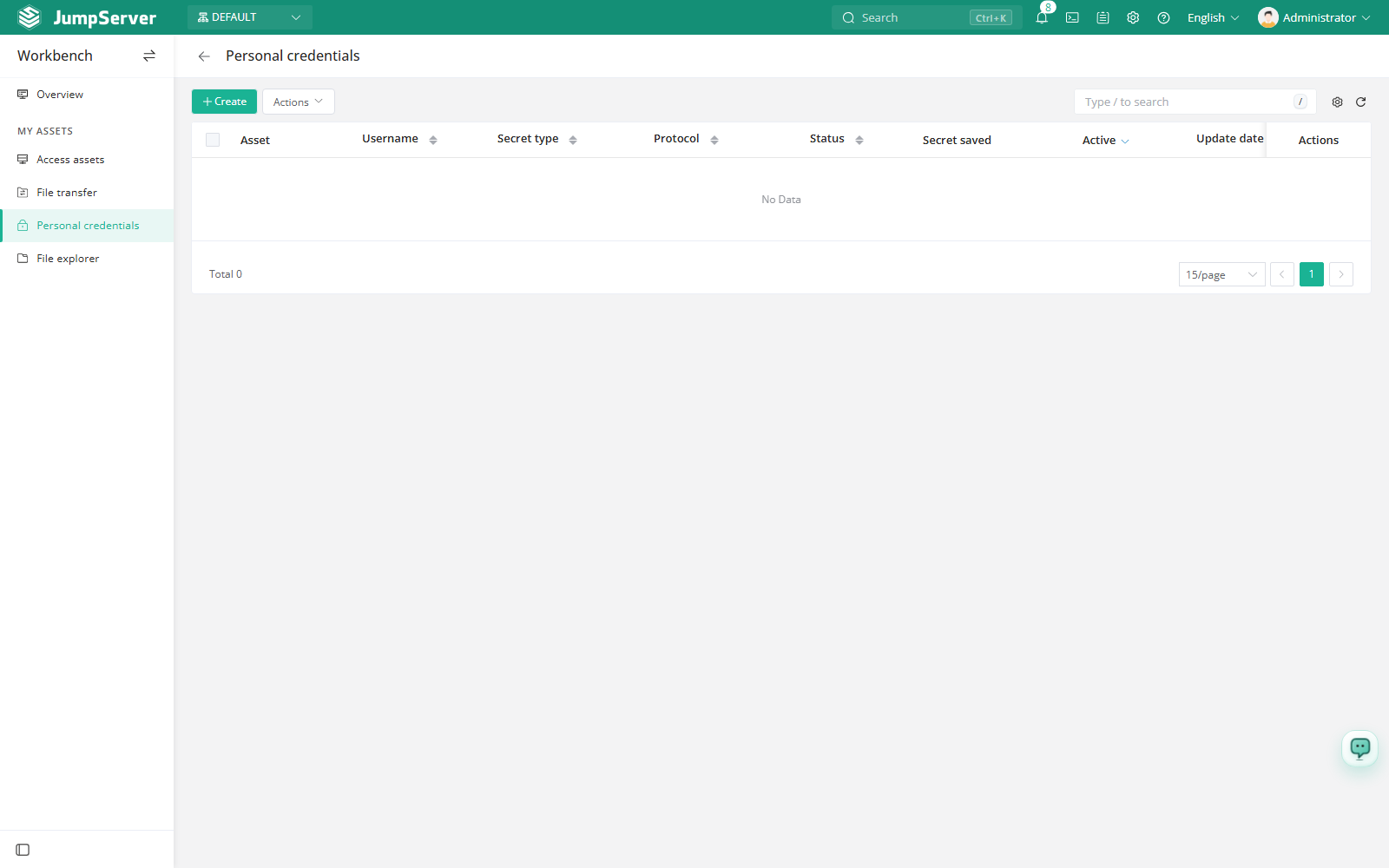
Personal credentials store login secrets that you own, such as a username and password you enter manually when connecting to an asset. They belong only to your account and are not added to the accounts managed by administrators.
After you save a credential, the web terminal offers it when you connect to that asset with manual input, so the secret does not have to be typed again. You can also test a saved credential or open a connection to its asset directly from this page.
Prerequisites
- Your account is authorized for the asset you want to save a credential for. See Authorizations.
- The authorization allows manual input or the virtual account you intend to use. Otherwise the credential cannot be selected during the connection.
- The personal credential settings for the current organization can be read. If they cannot, creating and editing are disabled.
If the page reports that personal credential settings could not be loaded, switch to another organization and retry, or ask an administrator to check the organization configuration. Creating and editing stay disabled until the settings load correctly.
Create a credential
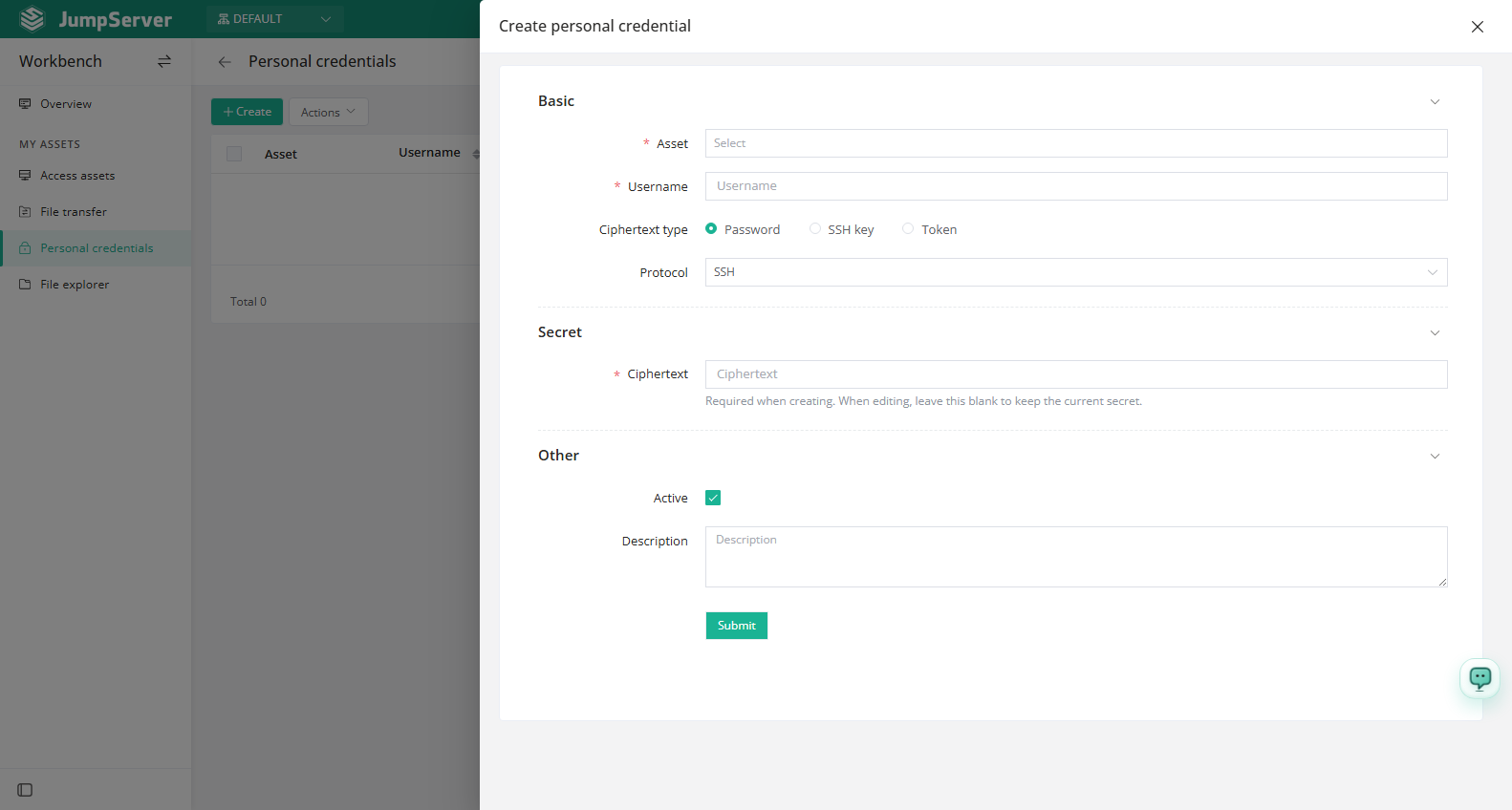
In Basic, select an authorized asset, enter the username, choose the secret type, and choose the protocol.
In Secret, enter the password, private key, or token. A secret is required when creating a credential.
Use a credential when connecting
When you connect to an asset and select Manual input as the account:
- Choose a saved personal credential to log in with the stored secret.
- Or enter another username and password, then click Save as personal credential to store it for later.
- For a saved credential, use Update saved password to replace the secret, or Cancel password update to discard the change.
Test, connect, edit, and delete
- Test connection checks whether the credential can log in to its asset. The action is only available for credentials that are active and have a saved secret; the result opens on the task page.
- Connect opens the web terminal in a new window at the credential's asset. Continue with Client Overview to select the protocol, account, and connection method.
- Use the edit icon to change the username, secret type, secret, or comment. The asset and protocol stay locked. If you close the drawer without submitting, the page asks for confirmation so unsaved edits are not lost.
- Use the delete icon for a single credential, or select several rows and choose Delete selected in More actions for a bulk delete.
Column reference
Deleting a personal credential removes the secret you saved. The action cannot be undone, and the next manual login requires entering or saving the secret again.