

My Tickets
Tickets & Approvals requires JumpServer Enterprise Edition. Ticket entries, approval cards, and flow settings are hidden without a license.
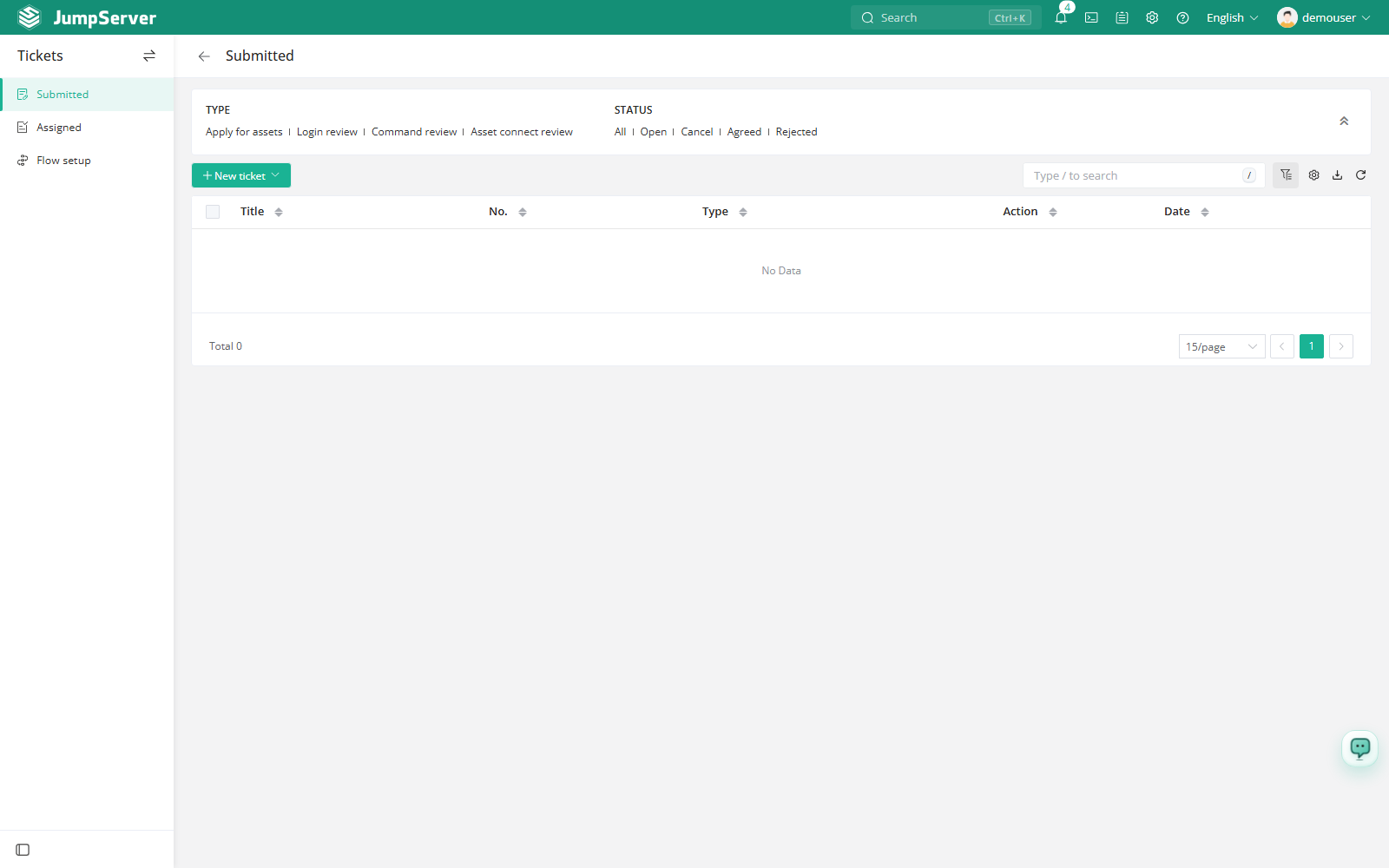
Submitted is the end-user index of tickets you created. Use it to request temporary access to assets, follow the approval progress of a request, answer an approver's questions, and cancel requests that are no longer needed. In the navigation, this page is labelled Submitted; its page title is My Tickets.
Prerequisites
- The Tickets feature is enabled and licensed. The Tickets & Approvals area requires an enterprise license.
- Your role grants the ticket permission needed to view and create tickets.
Submit an access request
Open the ticket area and make sure the Submitted tab is active.
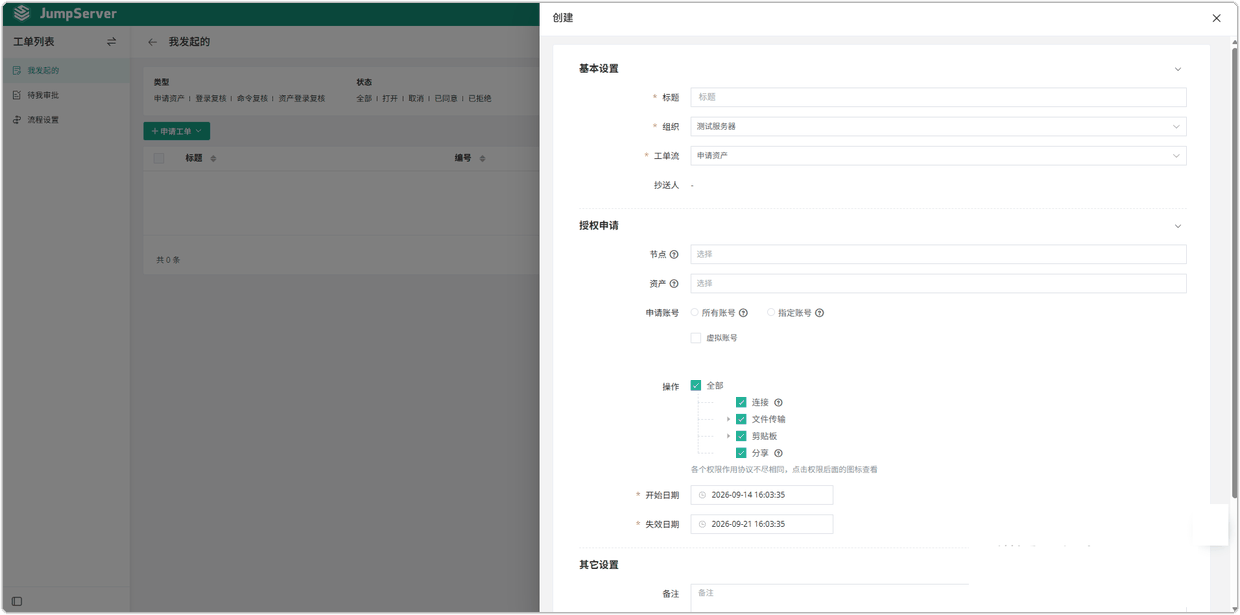
Click New ticket and choose Request asset authorization.
Fill in the title, organization, and requested assets or nodes.
Choose the account and actions you need, and set the start and expiry dates.
Submit the ticket. It appears in the list and moves through the approval steps defined in the ticket flow.
Ticket types
Only asset authorization requests are created from New ticket. The other types are raised automatically by access policies, command filters, or login rules, and then appear in the same list for tracking.
Track and manage tickets
- Click a Title to open the ticket detail page. It shows basic information, the requested permissions, the approval steps and their handlers, CC users, and the conversation with the approver.
- Use the Status filter to switch between pending, approved, rejected, and cancelled tickets. By default the list is limited to requests that still need attention.
- Use Reply in the detail page to add context for an approver.
- If a pending request is no longer needed, cancel it from the detail page so the approver's queue stays accurate.
Column reference
Requested permissions are valid only for the dates in the ticket. After the expiry date, the temporary authorization stops working even though the ticket record remains available for review. Auditors can review ticket history from Ticket Audits.