

Awaiting Approval
Tickets & Approvals requires JumpServer Enterprise Edition. Ticket entries, approval cards, and flow settings are hidden without a license.
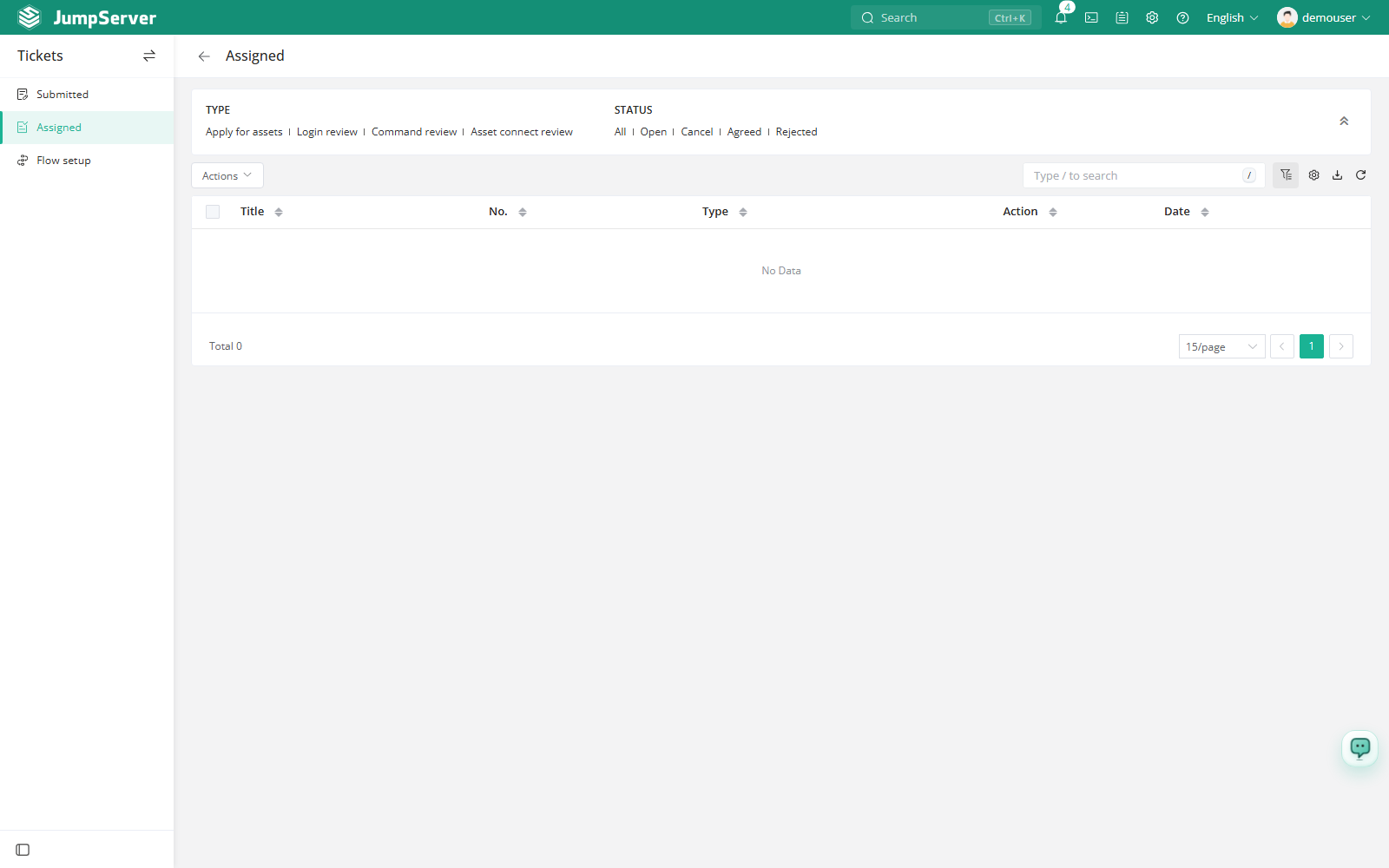
Assigned lists the tickets that are waiting for your decision. A ticket appears here when you are the current handler in its approval flow and the ticket is still pending. Use it as the approver work queue: read the request, tighten the scope if needed, then approve or reject. In the navigation, this page is labelled Assigned; its page title is Awaiting Approval.
Prerequisites
- The Tickets feature is enabled and licensed. The Tickets & Approvals area requires an enterprise license.
- Your role grants the ticket permission needed to view and process approvals.
- You are named as a handler in the ticket's approval flow, or you belong to a group or role matched by an attribute rule. Being able to view tickets does not by itself put a ticket in this queue.
Review and decide
Open Assigned. Only pending tickets where you are the current handler are listed.
Click the ticket title to open its detail page.
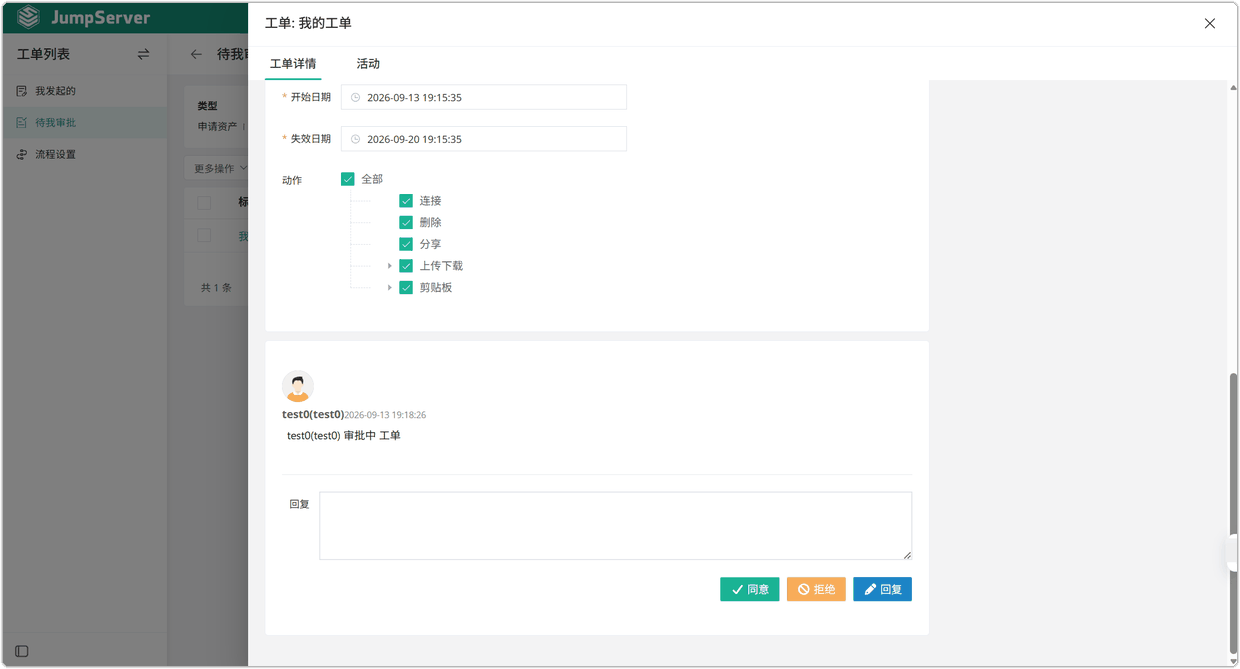
Read Basic info and Apply info: applicant, requested assets or nodes, accounts, actions, and the requested validity period.
Check the approval steps and the conversation on the right side. Add a Reply if you need more information from the applicant.
If necessary, narrow the requested assets, accounts, or actions before deciding. Approvers can reduce the requested scope so the permission matches the least privilege needed.
Click Agree to approve the request or Reject to decline it. The ticket moves to the next approval level, or finishes when the last level is complete.
Batch approval
Select several pending tickets and choose Batch approval in the toolbar. A confirmation dialog lists the selected tickets and their key request details. Confirm to approve all of them, or cancel to reject the whole selection. Use batch actions only when the requests have the same scope you would approve individually.
Ticket detail reference
Column reference
Approvers bound to WeCom or DingTalk can also process tickets from the mobile approval message without signing in to JumpServer. Decisions made there use the same approval flow and are recorded in the ticket history.