

AI Assistant
The AI Assistant helps you work with authorized assets through a conversation. It is available in two places:
- Web Terminal — the assistant opens beside the browser session.
- JumpServer Client — the assistant works alongside desktop connections and local applications.
The assistant can query asset information, explain session output, help prepare commands, and organize your workspace. It only sees assets and actions that your account is authorized to use.
Entry points
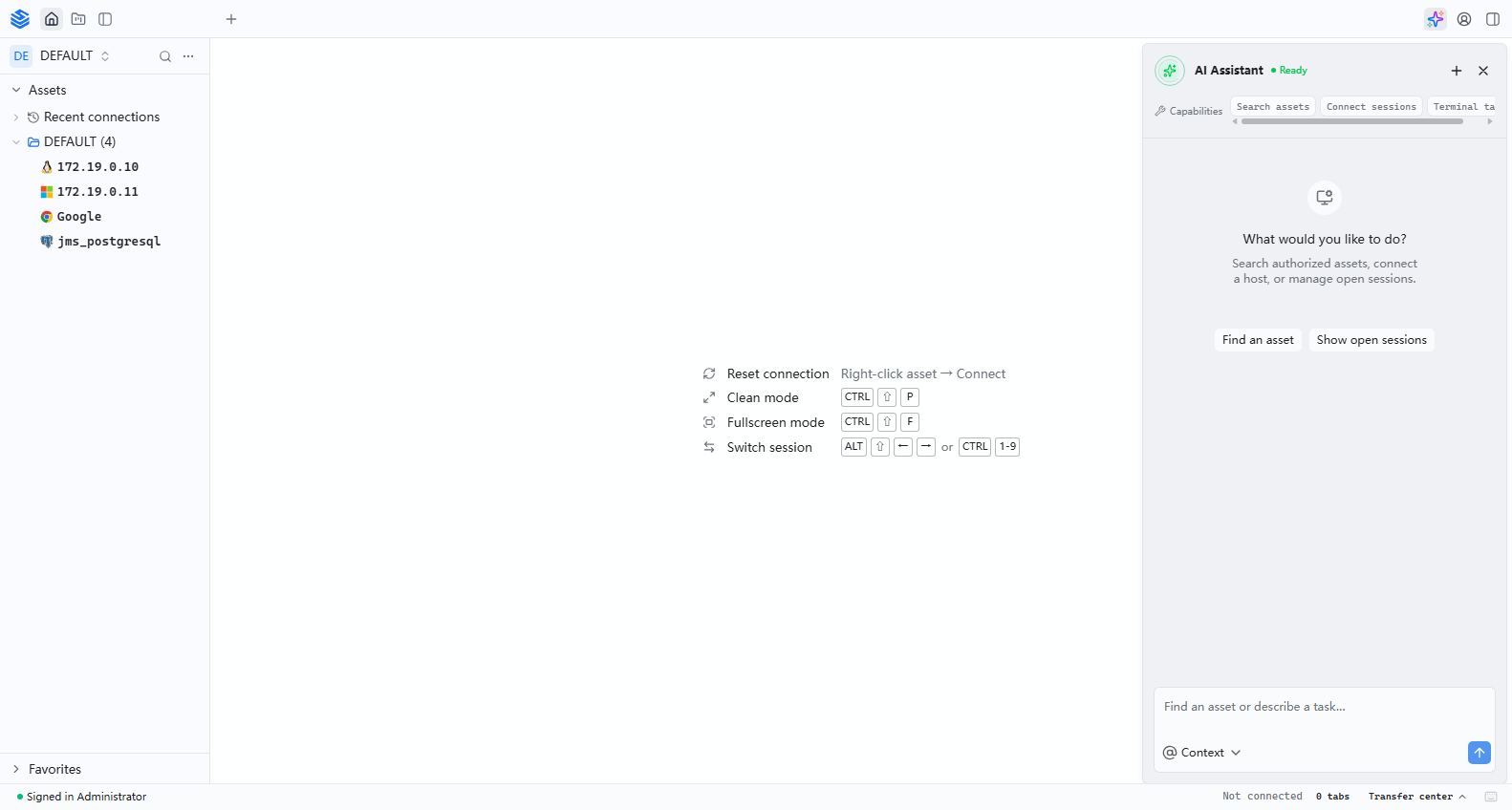
Open the assistant in the Web Terminal
- Sign in and open Workbench > Web Terminal.
- Start a session or select an existing session tab.
- Select the AI Assistant button in the top toolbar.
- Ask a question about the current asset, session output, or task.
The assistant panel opens on the right and keeps its own conversation context. It can inspect the current session domain, such as a terminal, database console, file manager, or script workspace, and can help you act on that session.
Open the assistant in JumpServer Client
- Sign in to JumpServer Client.
- Connect to an authorized asset, or open the workspace where you need help.
- Select the AI Assistant entry in the client.
- Describe the task or ask about the active connection.
Because the assistant runs beside the desktop client, it can help with connections that use native protocols and local applications. See Client Overview and Asset Connection for the desktop workflow.
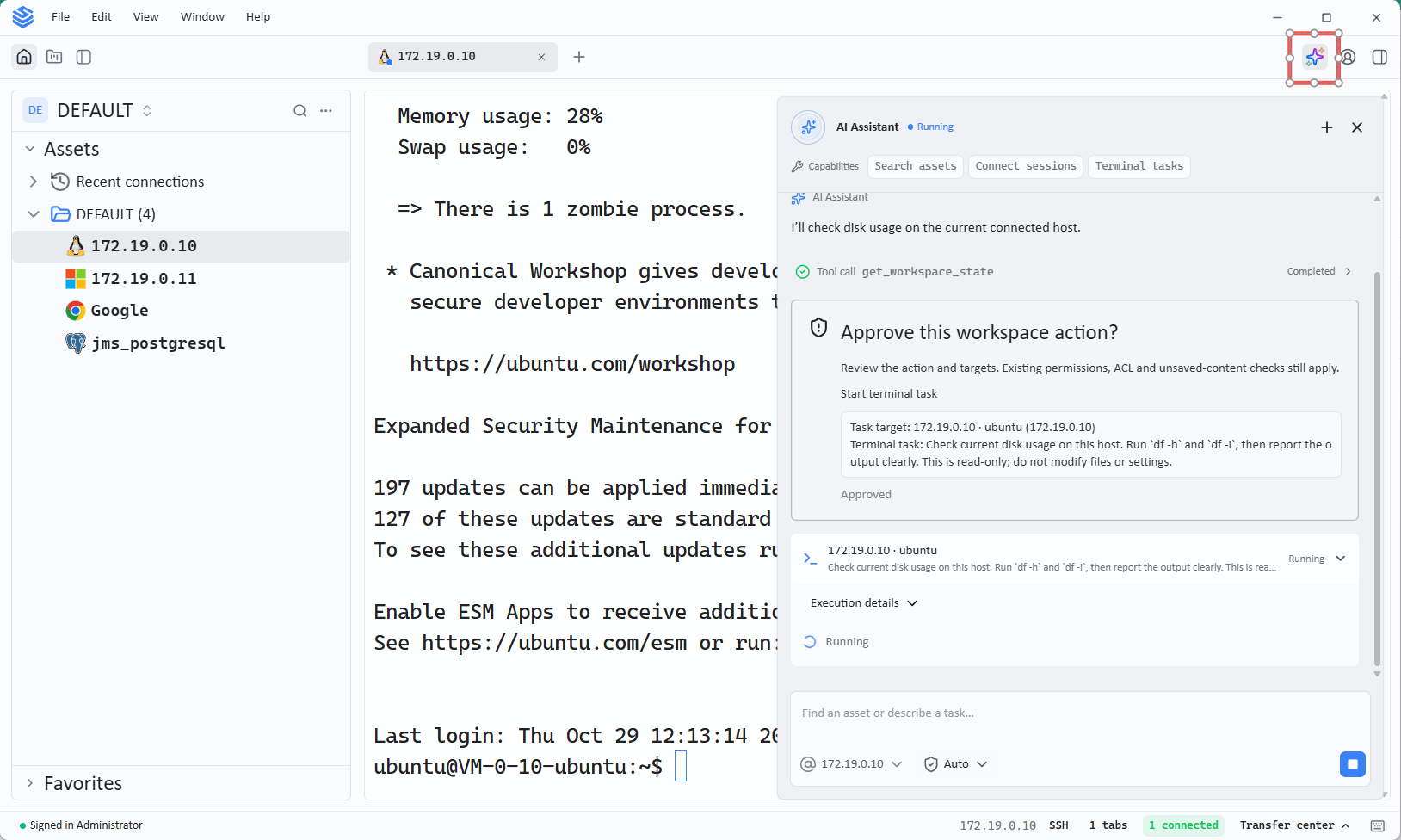
Work with an active session
The assistant is most useful when a session is already open:
- Terminal — explain an error, summarize command output, or suggest the next command.
- Database — inspect table structure, explain a query, or help draft SQL.
- Files — understand the current directory or plan a file operation.
- Scripts — draft or refine a script, then copy it to the script library.
- Workspace — organize session tabs, panes, or the current working layout.
When the assistant proposes a command or operation, review the target asset, account, and command before allowing it to run. The action takes effect on the authorized asset exactly as if you ran it yourself.
AI-assisted operations and auditing
New in v5.0.0The assistant also supports day-to-day operations and auditing:
- Command recommendations — the assistant suggests commands from the current session context, such as the asset, account, and recent output. Review each suggestion before you run it.
- Real-time operation risk alerts — the assistant evaluates operations as they happen and alerts you to risky commands or actions while the session is still active. See Risk Detection for the credential checks that run separately from session alerts.
- Automated audit reports — recorded session and operation activity can be turned into audit reports without manual assembly. Audit reports require JumpServer Enterprise Edition; see Reports Overview.
AI-assisted command filter rules
New in v5.1.0You can describe a command filter rule and have the assistant draft it, or create the rule through conversation, instead of configuring the rule manually. Review generated rules before you save them. See Command Filter.
Assistant panel behavior
Changed in v5.1.0- In the Web Terminal, the AI dialog now appears in front of the session interface instead of behind it.
- In JumpServer Client, the AI panel no longer expands automatically, so it stays closed until you open it.
Prerequisites
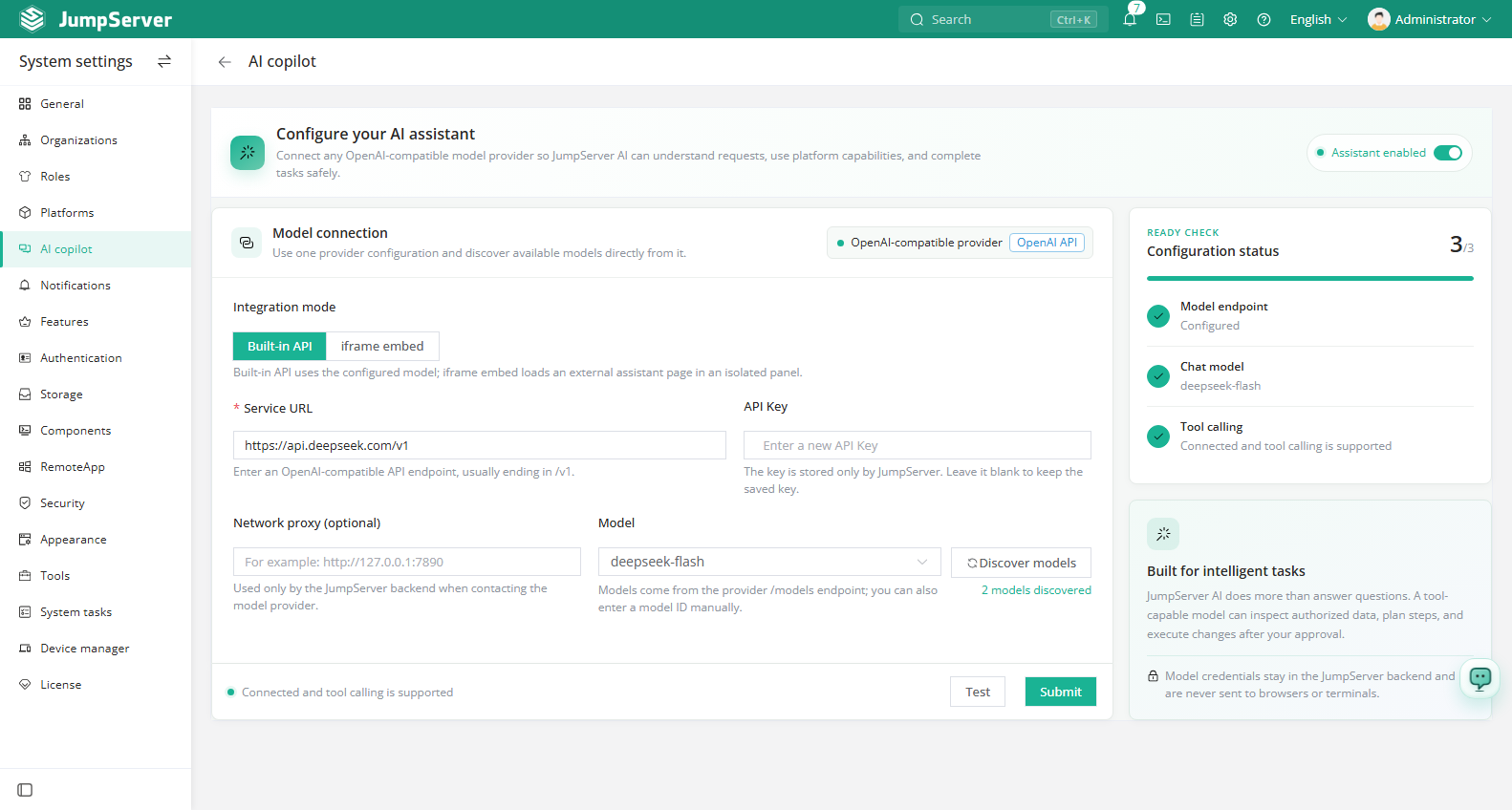
- An administrator has enabled the assistant under System Settings > AI Assistant and configured the model connection.
- Your system or organization role includes the Chat AI permission. The built-in Operator roles include the baseline permission; custom roles may not.
- The target asset is authorized to your account.
- In JumpServer Client, the client version is compatible with the server.
If the entry is missing, the feature is disabled, your role lacks permission, or the deployment has no valid model configuration.
Notes
- The assistant is scoped to the current organization and does not bypass authorization.
- Review generated commands and changes before confirming them.
- Do not paste secrets, private keys, or passwords into the assistant.
- Conversations can be audited by authorized administrators.
- Web Terminal and JumpServer Client share the same assistant configuration but provide different session context.