

Workbench Overview
Overview is the default page of the Workbench. It collects the information a user usually needs after signing in: the assets connected most recently, the tickets waiting for approval, the current profile, and recent login activity. Use it as a shortcut back into daily work instead of browsing the whole menu.
Normal users land on the Workbench after signing in. Administrators start in the Console and can switch to the Workbench from the workspace switcher in the top-left corner.
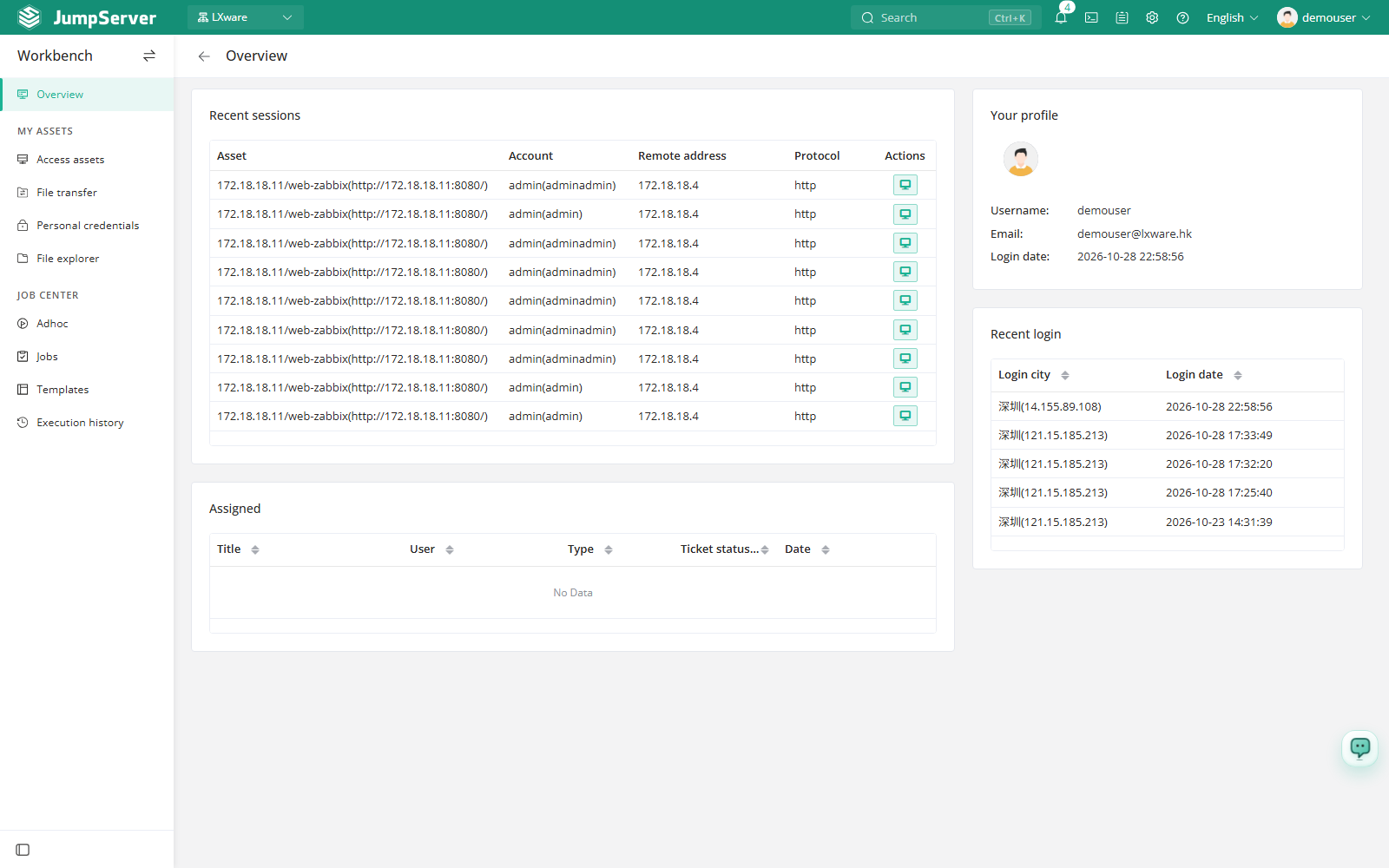
What the page contains
The Awaiting my approval card is only shown when the Tickets feature is licensed and the current account has ticket permissions. The Announcement banner only appears after an administrator enables announcements.
Open the Workbench
Sign in to JumpServer with your user account.
If the Console opens first, use the workspace switcher in the top-left corner and select Workbench.
Select Overview in the left navigation. The Overview page opens.
Connect from a recent session
The Recent sessions card lists up to five connections.
Find the asset in the Asset column. Each row is a previous connection to that asset with a specific account.
Click the connect icon in the Actions column. The Web Terminal opens in a new window with the asset and account already selected.
This is usually faster than searching in Access Assets when the target is already in the list. If you have no connection history, the card shows No data.
Review pending approvals
The Awaiting my approval card shows only tickets where you are the current handler and the ticket is still pending. Click a Title to open the ticket detail page, where you can read the request, review the approval steps, and approve or reject it. See Assigned for the full list and batch actions.
If you are not named as a handler in the approval flow, this card stays empty even when other tickets are pending.
Card reference
Announcements are managed under System Settings > Feature Settings. If the Overview page shows no announcement, the setting is disabled or no announcement has been published. See Feature Settings.
Only tickets in which you are the current handler appear on this page. Ticket lists and approvals are also available on the Assigned page.