

Device Manager
Device Manager (JDMC) requires JumpServer Enterprise Edition. The entry is available only when the deployment includes JDMC and the license and account permissions allow it.
Device Manager opens JDMC, the host operations console that is deployed alongside JumpServer. It manages the server and containers that run JumpServer — not the assets protected by JumpServer.
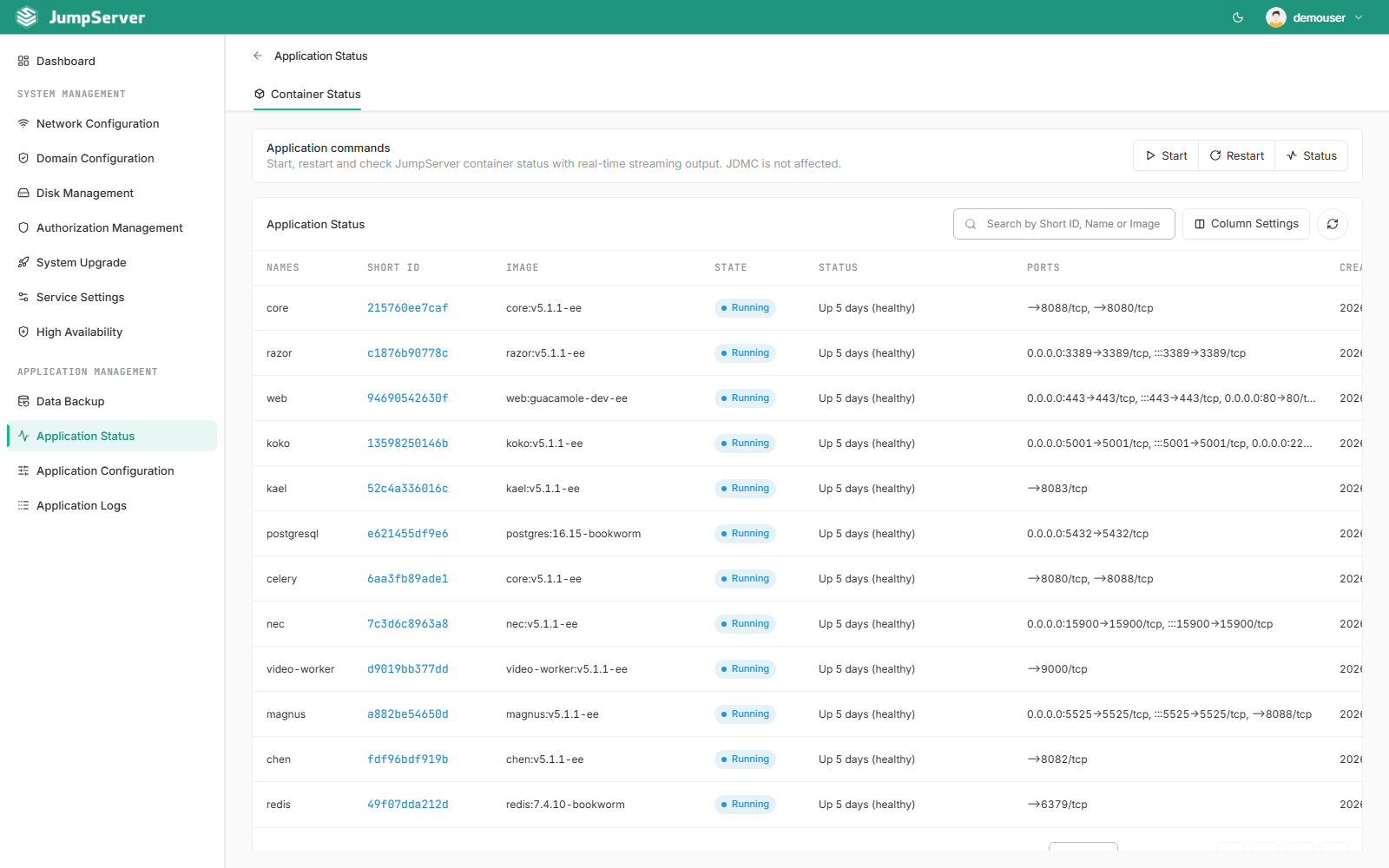
Most of the operational tasks covered in this section are available from Device Manager: backup and restore preparation, upgrade preparation, network and certificate changes, disk expansion, license management, container status and restarts, log inspection, and primary/standby setup. Use Device Manager when the task targets the JumpServer host or its containers.
Device Manager actions affect the whole JumpServer deployment and can interrupt active sessions. Restrict access to authorized administrators, plan a maintenance window, and back up the deployment before changing network, disk, or availability settings.
Open Device Manager
From JumpServer, open System Settings > Device Manager. The console opens in a new tab and reuses the current sign-in.
If you open https://<jumpserver-host>/jdmc/ directly, sign in with the server's
root password and accept the user and privacy agreements. Device Manager shares
the JumpServer host name and is served under the /jdmc/ path.
For the entry, sign-in, and field-level details, see Device Manager.
What you can manage
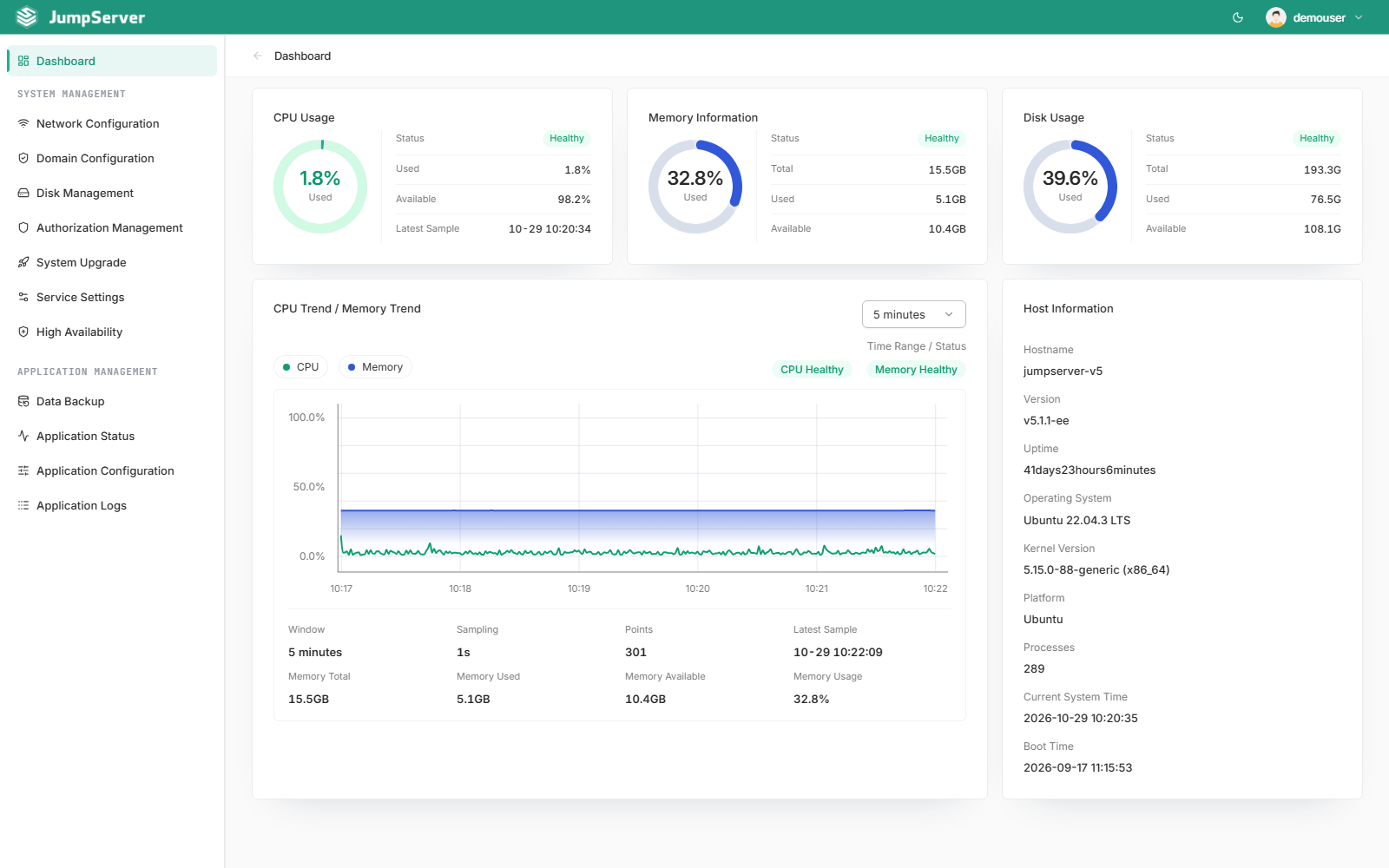
Dashboard
The default page summarizes the host:
- Resource usage cards for the server
- CPU and memory trend charts
- Host information, including the operating system and deployment details
Use it as the first check before maintenance, or after a change, to confirm that the host is healthy.
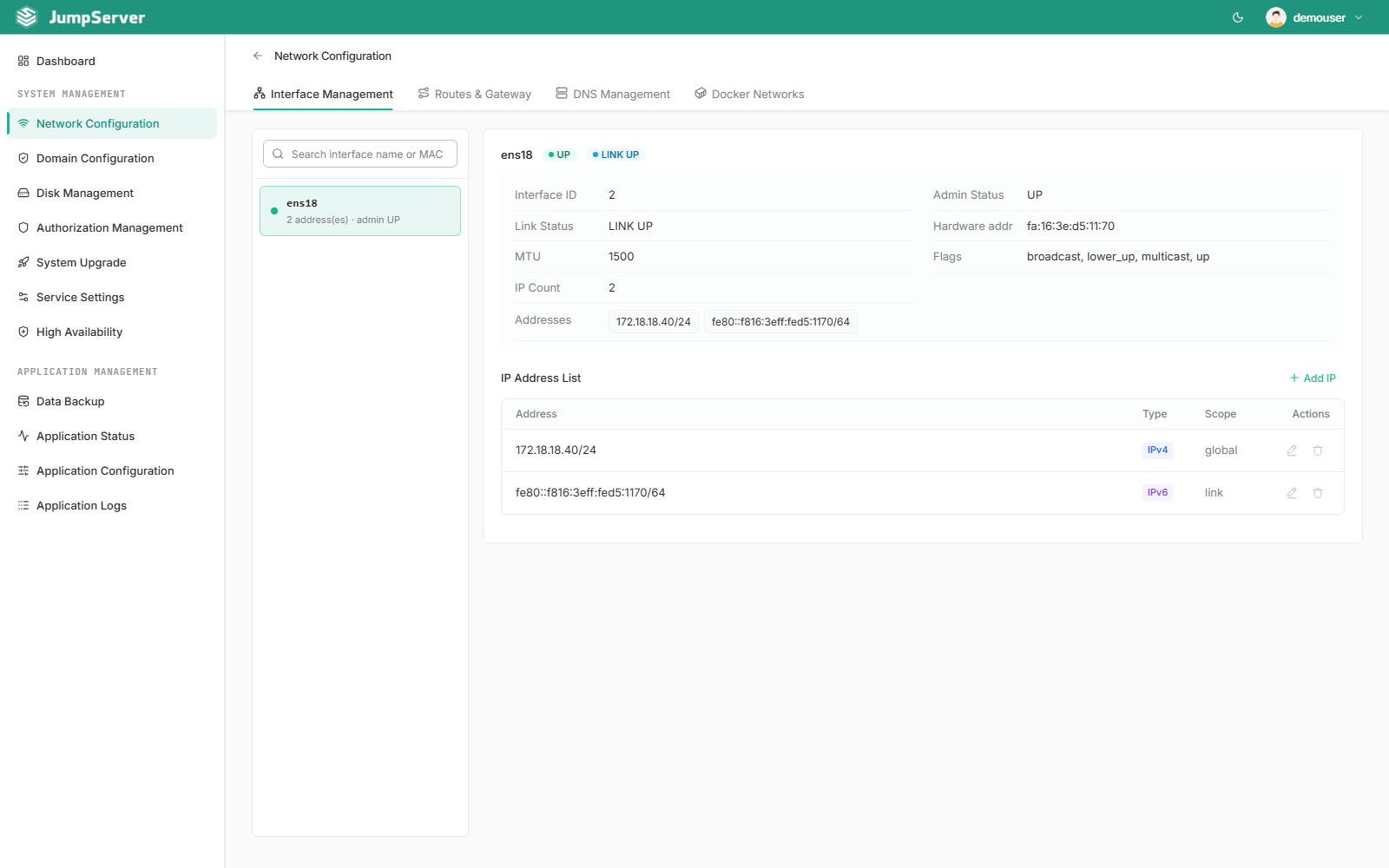
System management
Application management
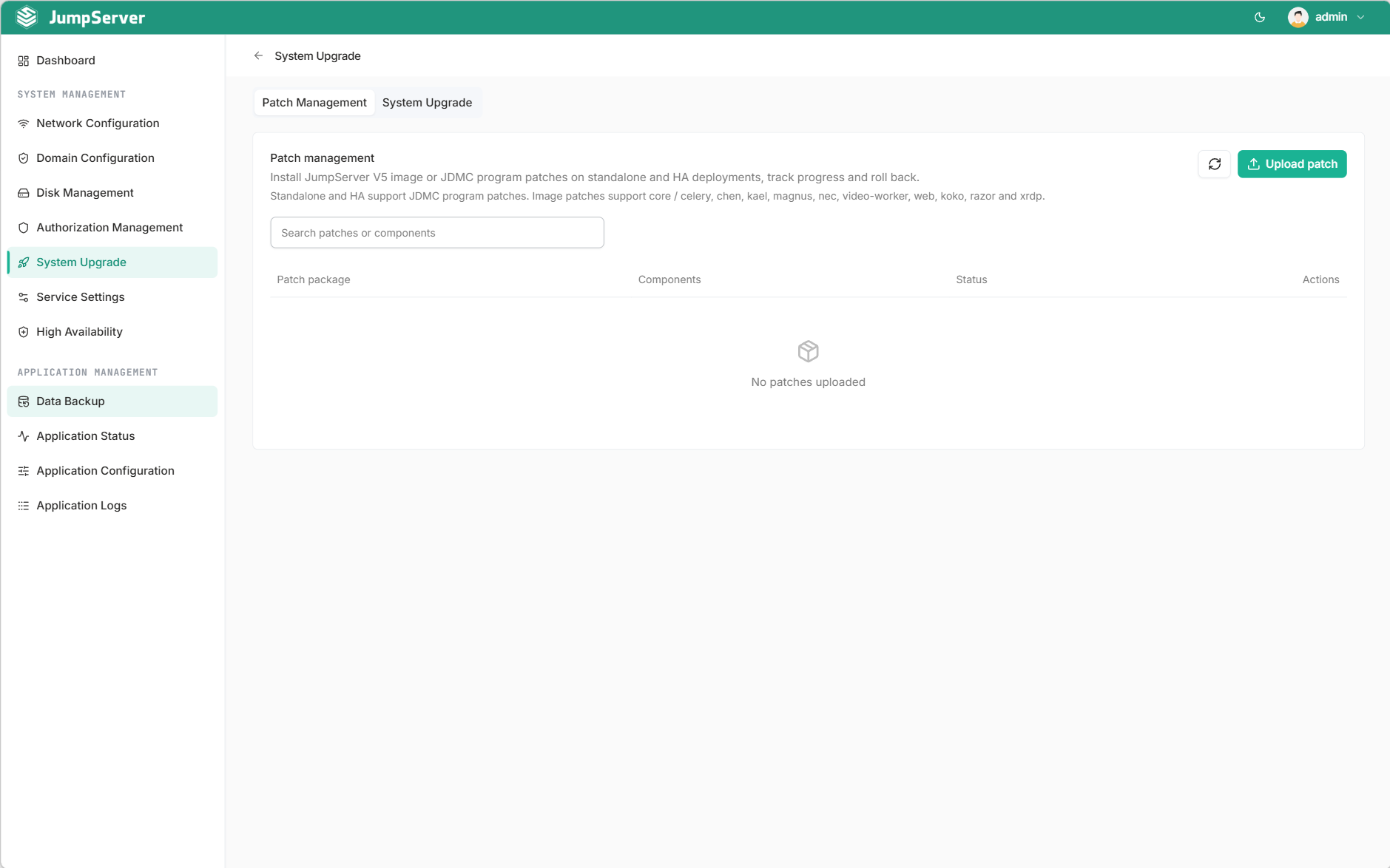
High availability and maintenance
New in v5.1.0JDMC adds primary and standby management, system upgrade management, and patch package management. Use primary and standby management to inspect and configure a two-node high-availability cluster, and use system upgrade management and patch package management to maintain the deployment without leaving the console.
For the surrounding procedure, see Upgrade & Maintenance.
Stronger persistent write protection
Changed in v5.1.1High availability deployments apply stronger persistent write protection for databases and Redis across container restarts, re-creation, and failure recovery. Redeployment completion checks tolerate normal replication lag, and switchover waits and recovery coordination are refined to reduce false failure detection.
Runtime environment check
Every page except the dashboard shows a runtime environment result. A passing check reports Runtime environment normal. Open the details to see required and optional dependencies, the detected executable paths, and network checks. If a dependency is missing, Device Manager identifies it and the affected operations may be unavailable until it is installed. Select Re-check after fixing the dependency.
Common operational scenarios
One console for most operations
Most of the operational work described in this section can be completed from Device Manager. The table below maps the surrounding Operations topics to the console areas that support them.
Device Manager complements the procedures in this section rather than replacing them: use it for host and container actions, and follow the linked page for the surrounding process, validation, and rollback steps.
Operational boundaries
- Device Manager operates on the host and containers; JumpServer Console operates on organizations, users, assets, accounts, and authorizations.
- Device Manager is not a replacement for Backup & Restore or Upgrade & Maintenance; use it as the host console that supports those workflows.
- Some actions require root-level access and a healthy runtime environment. Do not run host-level changes during active maintenance windows without a rollback plan.
- The Device Manager entry and available menus depend on the deployment and the account's permissions.
Version history
Related topics
- Device Manager — entry, sign-in, and console reference
- Backup & Restore
- Upgrade & Maintenance
- Configuration
- Network Ports