

SSH Terminal
The SSH Terminal lets you open JumpServer from a standard terminal client instead of a browser. After you sign in to JumpServer, KoKo presents your authorized assets and accounts in an interactive menu, then proxies the selected session through the same authorization, policy, and audit pipeline as the Web Terminal.
This is different from Application > SSH Client. That method launches a local SSH client for one asset from the Web Terminal. SSH Terminal connects to JumpServer itself and lets you choose the asset and account from the terminal.
Prerequisites
- Your JumpServer user is enabled and can sign in.
- At least one asset and account are authorized for your user.
- The SSH client port
2222is reachable from your computer. See Network Ports. - Your terminal has an SSH client. Linux, macOS, Windows 10/11, and most terminal emulators include one.
- If your administrator enabled MFA, login confirmation, or SSH-key-only login, complete that step when prompted.
Connect from a terminal
Run the command with your JumpServer account and the JumpServer host:
For example:
On the first connection, verify the host key fingerprint and confirm it:
Then enter your JumpServer password, not the password of the asset account:
If the administrator allows SSH keys for your user, you can use a key instead:
Interactive asset menu
After login, KoKo displays a welcome message and a numbered shortcut menu. The
exact wording follows the interface language selected for your user, and the
prompt is Opt>.

When you display an asset list, KoKo shows a table with No., Name, Address, Platform, Organization, and Remarks columns. Enter the number of the asset to select it:

If an asset has multiple authorized accounts, KoKo shows an account table with
No., Name, and Username columns. Enter the account number to
continue. Use b or back to return to the asset list.
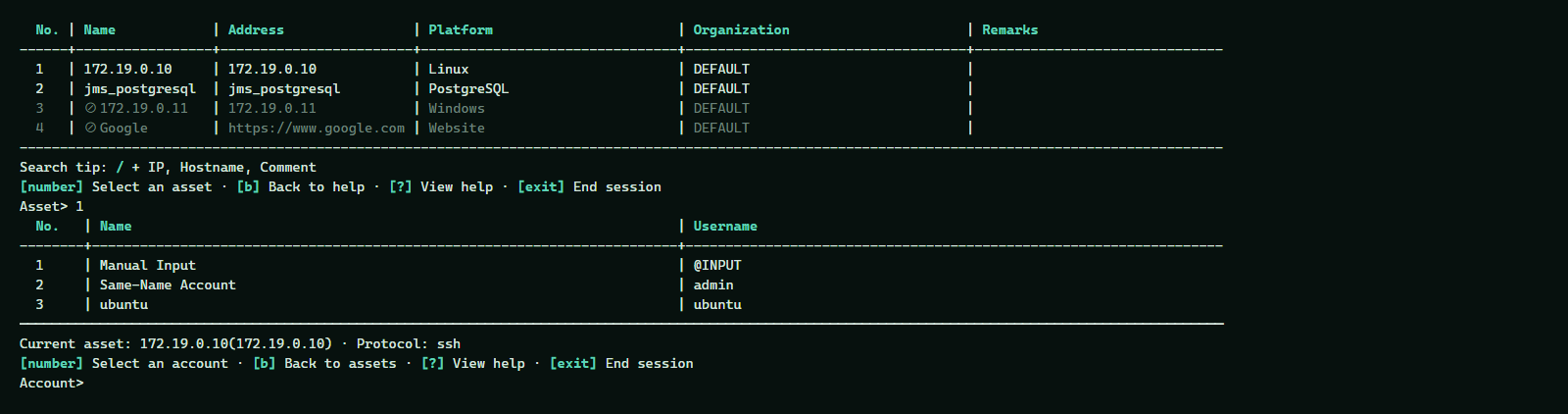
The session opens as a terminal connection. When you exit the remote shell, the
proxied session ends. If you return to the JumpServer menu instead, select another
asset or enter q to exit.
Advanced: direct asset login
If you already know the asset and account, you can put them in the SSH username. KoKo supports these forms:
For example, to open an SSH account named ubuntu on 172.19.0.10:
The # separator is also accepted:
Direct login still requires your JumpServer password and still applies authorization and ACL checks. If the asset or account is ambiguous, use the interactive menu instead.
Troubleshooting
Related
- Access Assets — browse authorized assets in the Workbench
- Web Terminal — browser-based terminal and remote desktop
- Network Ports — firewall requirements for SSH client access