

Users
Custom system and organization roles require JumpServer Enterprise Edition. Built-in roles remain available in Community Edition.
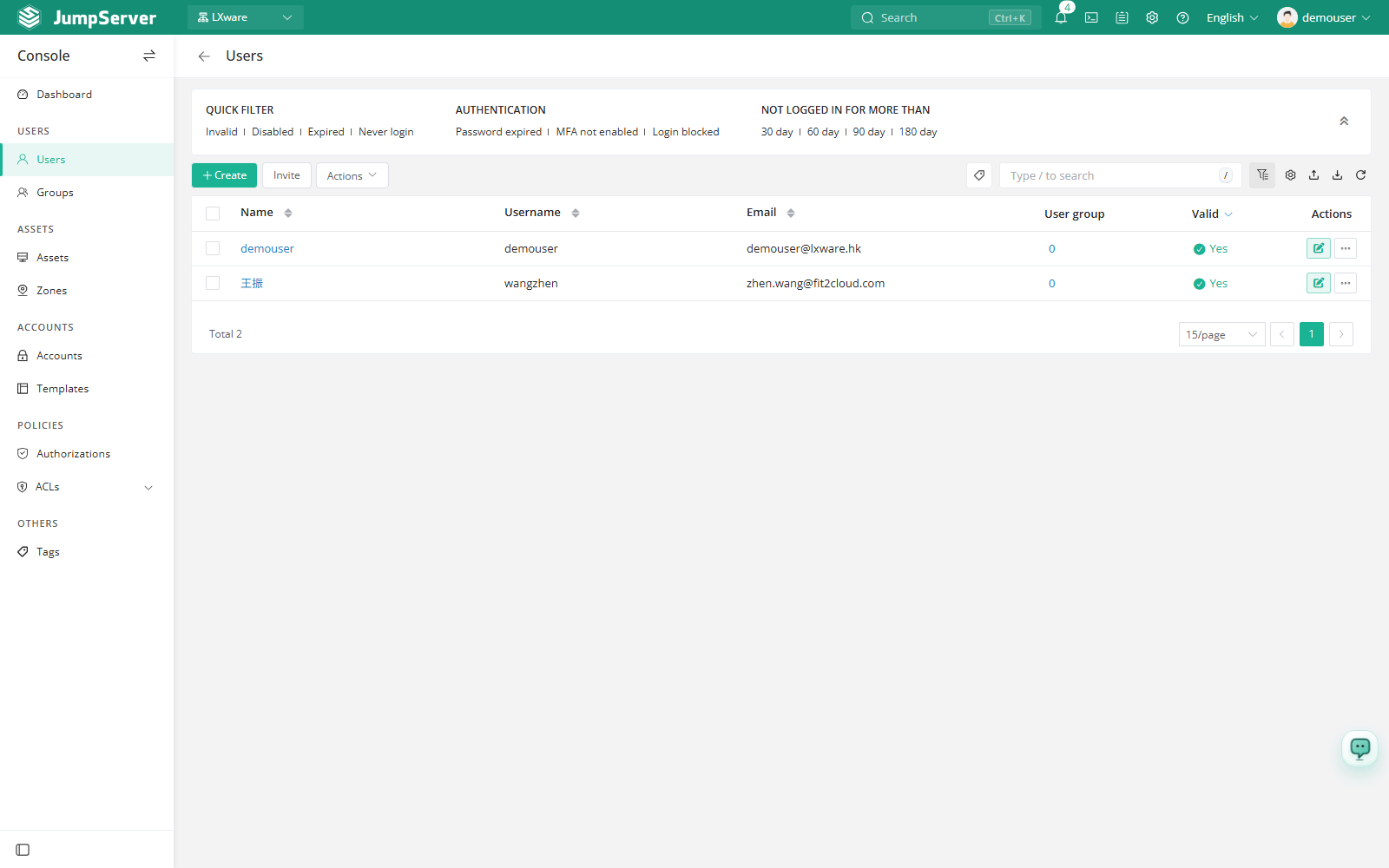
The Users page is the user directory for the current organization. It lists every account that can sign in to JumpServer, with filters for disabled, expired, and inactive users, and it provides the actions administrators need most: create a user, invite an existing system user into the organization, import or export a batch, and open a user's detail page.
Open the page from Console > Users.
Overview
The area above the list groups filters into three sets:
- Quick filters: Invalid, Disabled, Expiration date, and Never logged in.
- Authentication settings: Password expired, MFA not enabled, and Login blocked.
- Inactive for more than: 30, 60, 90, or 180 days.
The columns are Name, Username, Email, Groups, Active, and Actions. Use the toolbar icons to change columns, export, import, and refresh the list.
Before you begin
- Sign in with a system administrator or organization administrator account.
- To deliver password-reset and SSH-key-reset links, configure email in Notifications first.
The list shows only users in the current organization. A user who already exists in JumpServer but has not joined this organization must be added with Invite user.
Create a user
Click Create.
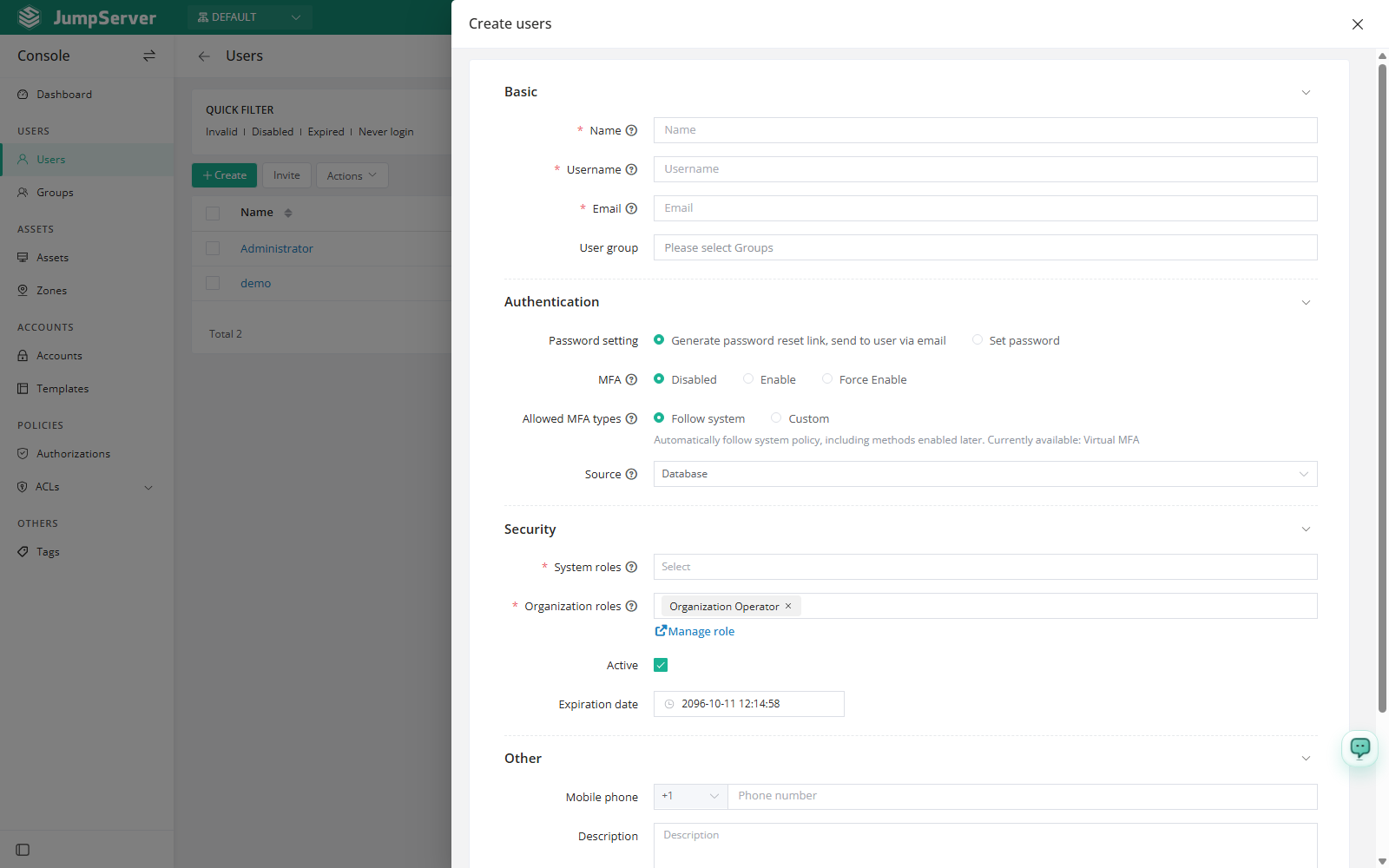
In the Create user drawer, fill in the fields described below.
Click Submit, or Save and continue adding to create another user.
Field reference
Invite a user into the organization
Click Invite user.
In Invite user to this organization, select the User and the Organization roles.
Click Confirm.
For security, the dialog shows only a subset of users; search to find others.
Import and export
Use the toolbar to import or export users. Import can create or update users, accepts CSV and XLSX files up to 10 MB, and works best when you fill in the downloaded template.
User details
Click a user's Name to open the detail drawer, with tabs for basic settings, authorized assets, authorization rules, login rules, sessions, and activity.
Quick actions
Quick update on the Basic tab provides:
- Active: turn sign-in eligibility on or off.
- Reset password: send a reset email to the user.
- Reset SSH key: email a link for setting a new SSH key.
- Reset MFA: the user must bind MFA again at the next sign-in.
- Unlock user: unlock an account locked after repeated failed sign-ins.
User login rules
The User login rules tab restricts where and when this user can sign in.
Row actions and bulk actions
The row menu (...) provides Delete (remove the user from JumpServer; irreversible), Duplicate (clone and adjust), and Remove (remove from the current organization only; the user can be invited again later).
Select the checkboxes in front of one or more users and click More actions to remove, disable, enable, edit, or delete the selected users.
Delete permanently removes user data and cannot be undone. To take a user out of the current organization only, use Remove.