

Accounts
The Accounts page is the inventory of everything JumpServer manages for privileged access management: the accounts themselves, the assets they belong to, and reusable account templates. It opens on the Accounts tab by default.
Overview
Go to PAM > Accounts. The page contains three tabs:
All three tabs are organization-scoped, and the buttons you see depend on your account permissions. A user who cannot view accounts sees an empty or restricted list rather than the full inventory.
Accounts tab
The Accounts tab lists managed accounts with the columns Name, Username, Secret, Asset, Platform, Connect, and Actions. The Secret column never shows the value; use the row actions to view or update it if your role allows.
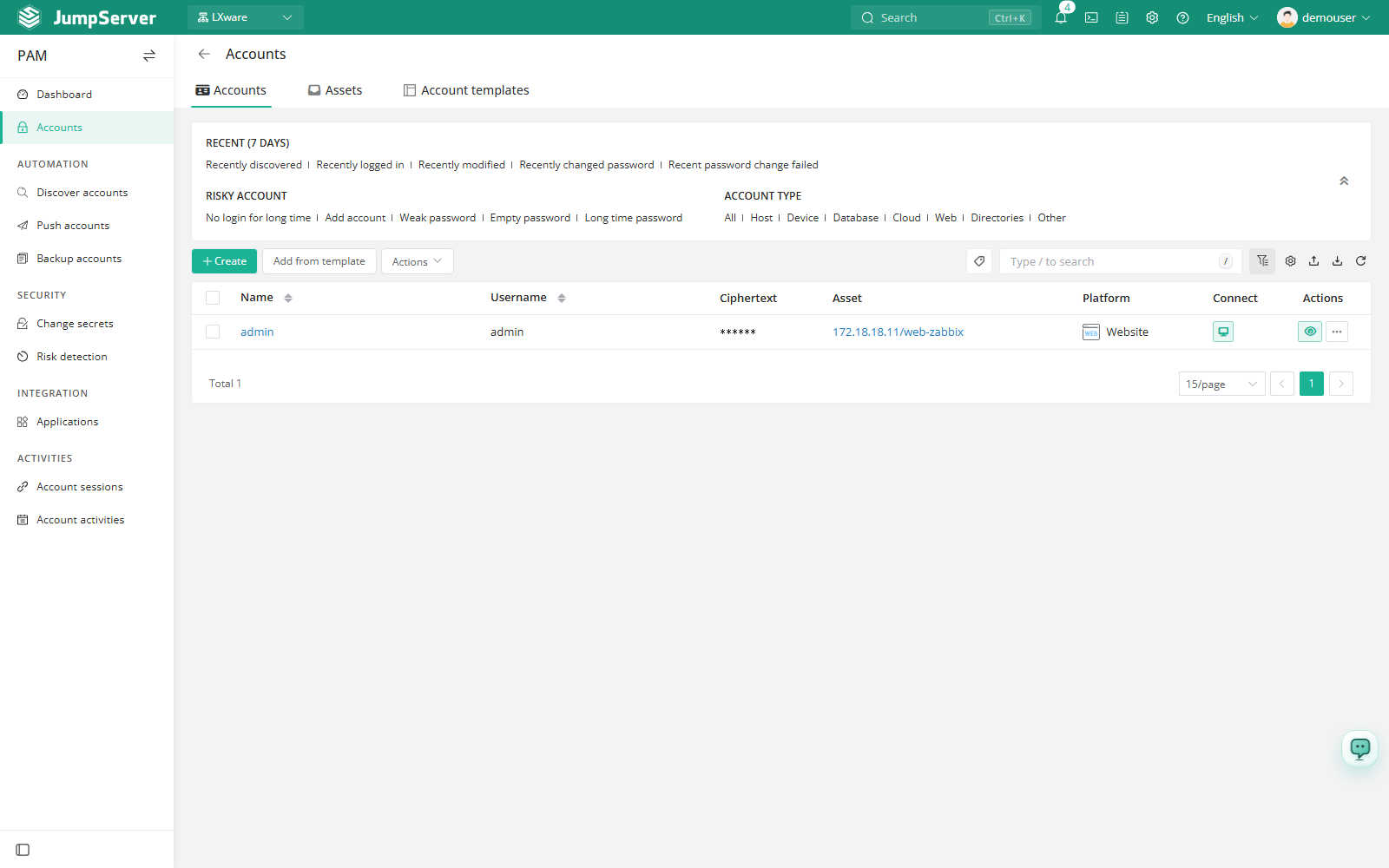
Use the quick filters above the table to narrow the list by the dimension that matters for review:
Typical actions from this tab:
- Click Create to add one account manually and link it to an asset.
- Click Add from template to create accounts on one or more assets from a saved template.
- Open the More menu on a row to edit the account, update or clear its secret, verify it, duplicate it, or delete it.
Account creation is also available from the asset detail page in the Console. The PAM page is a cross-asset view, so it is usually faster when you need to work with accounts from several assets at once.
Assets tab
The Assets tab inverts the relationship and lists the managed assets with their accounts. Columns are Name, Address, Accounts, Platform, Last login date, Connectivity, and Actions.
The Connectivity column reports the connection state for the asset accounts, for example OK, Error, or Invalid password error. A failed state usually means the stored secret no longer matches the remote account, so update the secret before relying on automated tasks.
Account templates tab
The Account templates tab lists saved templates with Name, Username, Secret type, Privileged, and Actions.
A template fixes the username pattern, secret type, and privileged flag so that operators do not have to repeat those choices. After a template exists, select it from Add from template on the Accounts tab: choose the target assets, confirm the accounts to create, and submit. This is the recommended way to roll out a standard administrative account across a large asset group.
Click Create on the Accounts or Account templates tab to add a single account or template; the Assets tab has its own Create action for new assets. For asset-level settings that are not account-specific, see Assets.