
For AI agents: the complete documentation index is available at https://www.jumpserver.com/docs/llms.txt, the full documentation bundle is available at https://www.jumpserver.com/docs/llms-full.txt, and this page is available as Markdown at https://www.jumpserver.com/docs/features/client/keyboard-shortcuts.md.
๐ŸŽ‰ JumpServer v5.2.1 is available. See what's new โ†’

Keyboard Shortcuts

JumpServer Client provides shortcuts for sessions, settings, and window actions. The menus and the empty workspace show the current binding next to the action, so you can confirm a shortcut without leaving the client.
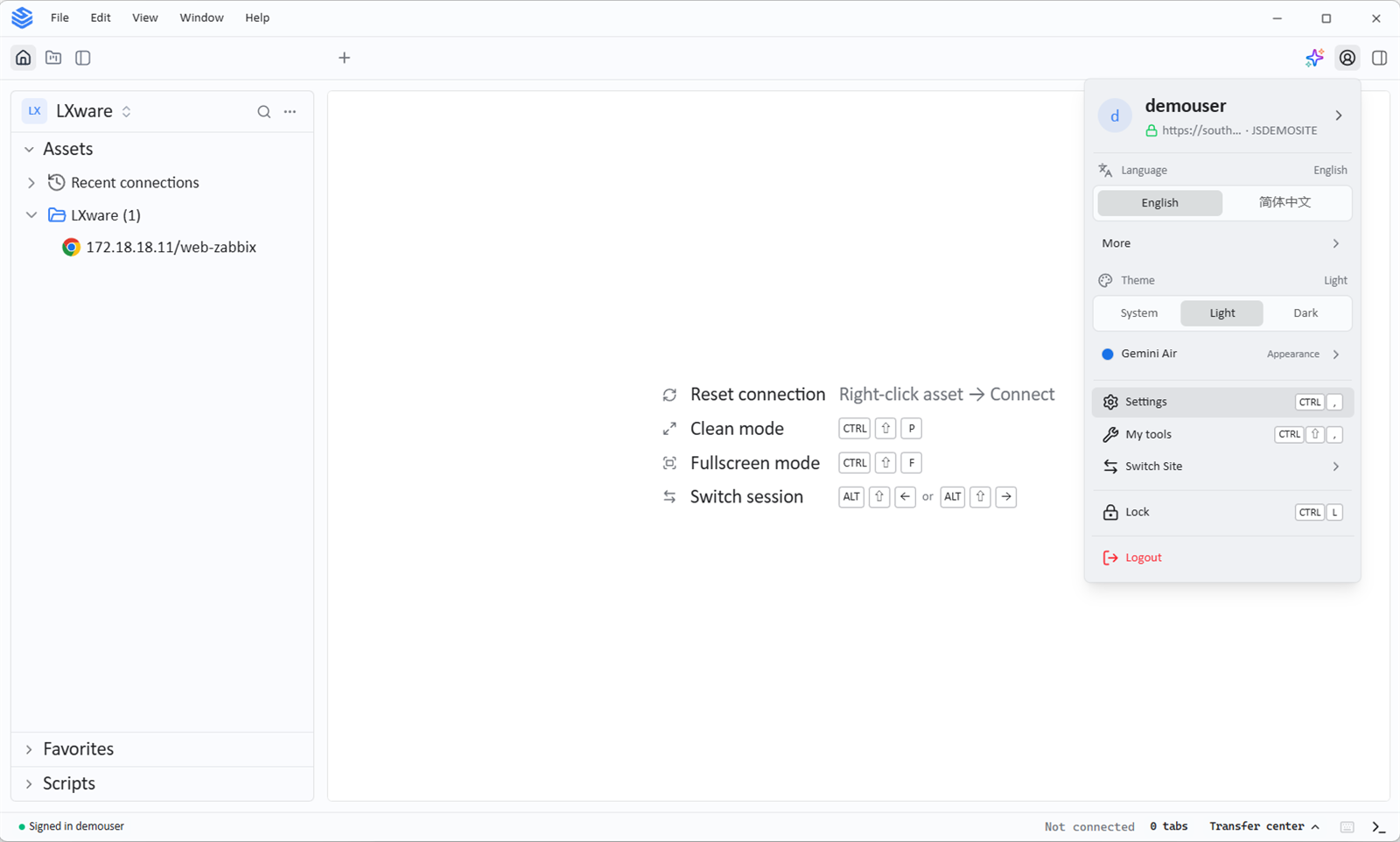
Figure 1: Keyboard shortcut hints in the client workspace.

Session shortcuts

ActionShortcutNotes
Reset connectionRight-click asset โ†’ ConnectReopens the connection dialog to select the method again.
Clean modeCtrl + Shift + PHides panels for a focused session view; also called focus mode in the View menu.
Fullscreen modeCtrl + Shift + FToggles the focused session or window into fullscreen mode.
Exit clean modeHold EscRestores the normal workspace layout.
Switch sessionAlt + Shift + โ† / โ†’Moves to the previous or next session tab.
Send batch commandCtrl + EnterSends the command from the batch command bar to the selected sessions.

Client shortcuts

ActionShortcutNotes
SettingsCtrl + ,Opens the client Settings window; Cmd + , on macOS.
My toolsCtrl + Shift + ,Opens the client tools from the profile menu.
LockCtrl + LLocks the client; unlock with the lock password.

Settings can be opened with Ctrl + , (Cmd + , on macOS) from anywhere in the client. The profile menu shows the same shortcut next to the Settings entry.

Window shortcuts

ActionShortcutNotes
New local shellCtrl + TOpens a local shell from the File menu.
Close tab or windowCtrl + WCloses the current tab or window.
MinimizeCtrl + MMinimizes the client window.
QuitCtrl + QQuits JumpServer Client.

On macOS, use Cmd instead of Ctrl for the menu shortcuts. The File, View, and profile menus also show the current shortcut next to each action.