

Connection Tests
Connection Tests brings asset and account connectivity checks into one place. An asset test checks whether JumpServer can reach the target, while an account test verifies that a managed account can authenticate and work with the asset. Both test types run as tasks, either on demand or on a schedule, and keep their execution history and per-target results.
Changed in v5.2.0Prerequisites
- Access to PAM > Automation > Connection tests with permission to view and change connection test tasks.
- The target assets or nodes already exist.
- For account tests, the managed accounts exist with a valid secret, and the asset platform supports account verification.
- JumpServer can reach the target address and protocol through the configured network path.
Overview
The page has three tabs:
- Test tasks — task definitions, their type, targets, and schedule.
- Execution history — one row per run, with trigger mode, timing, status, and log.
- Execution records — per-asset or per-account results, including the target, result, and error.
Create a connection test
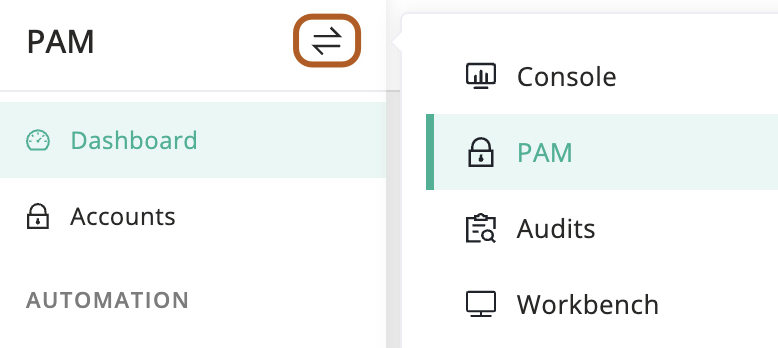
At the top-left of the page, select , then click PAM.
Open PAM > Automation > Connection tests and stay on the Test tasks tab.
Enter a Name and choose the Type: Asset checks reachability, while Account verifies account credentials.
Select the Asset and Node targets. The two fields can be combined.
For Account tests, enter the account usernames to test. Leave this empty to test all active accounts on the selected targets.
Optionally enable Periodic and set the schedule. Keep Active selected, add a Description if needed, and click Submit or Save & Continue.
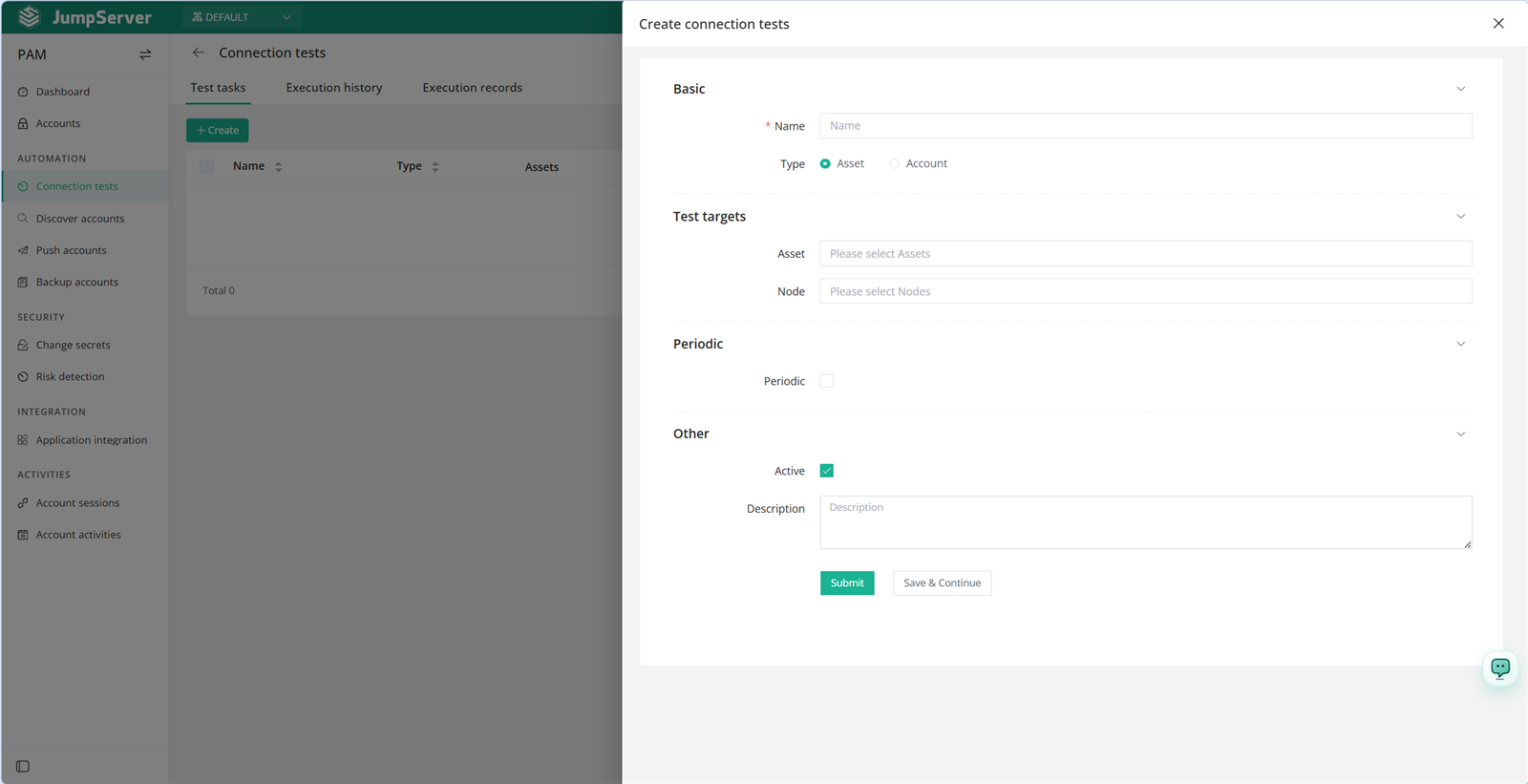
Field reference
Run and review tests
Use the run button in a task row to start a test immediately. The More menu provides Edit, Delete, and Duplicate.
Open Execution history to see whether a run succeeded, which trigger started it, how long it took, and the log for failed runs. Open Execution records for the per-target view: Asset, Address, Account, Username, Privileged, Result, Start, Finished, and Error. The record keeps the target identity and result even if the asset or account is later changed or deleted.
Troubleshooting
- If an asset test fails, check the address, port, protocol, platform settings, and the network path or zone gateway between JumpServer and the asset.
- If an account test fails, verify the account secret, the account permissions, the asset platform's account support, and any authentication restrictions such as a domain or WinRM configuration.
- If a task reports no targets, confirm that the selected nodes still contain assets and that the current organization can see them.