

Asset Connection
Oracle, SQL Server, DB2, ClickHouse, Dameng, and OceanBase database assets require JumpServer Enterprise Edition. Desktop database, RDP, VNC, and VirtualApp methods also require Enterprise Edition. Built-in Web Terminal access, WebLite remote applications, and Community-supported database platforms are included in Community Edition.
The Web Terminal connects to assets authorized for your account. A connection is defined by three choices: the asset type, the protocol, and the connection method. The method decides whether the session runs in the browser or in JumpServer Client on your computer.
Connection flow
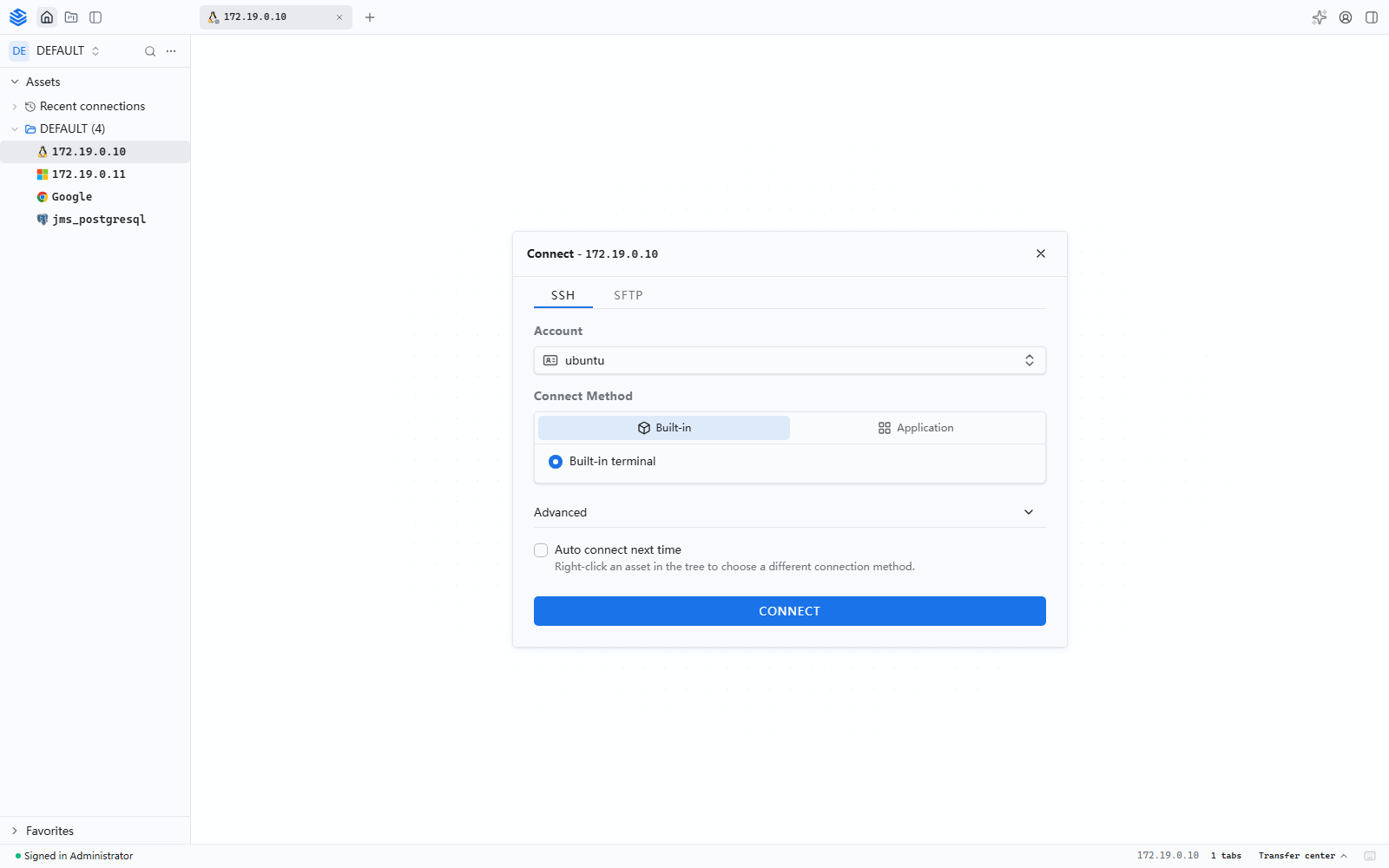
- Select the target asset in the left sidebar. The connection dialog opens.
- Choose a Protocol tab. Assets with multiple protocols, such as SSH and SFTP, show one tab per protocol.
- Choose an Account authorized for the asset. Manual input lets you enter an account and password yourself.
- Choose a Connection method. Methods are grouped as built-in, application, and remote application.
- Open Advanced options when you need to change the character set, terminal behavior, resolution, application, or the way a remote application opens.
- Select Connect, or Open in client for a method that runs in JumpServer Client.
Supported asset types and protocols
The platform of an asset determines which protocols it can enable. This section maps asset types to protocols and protocols to connection methods; the next section explains each method and when it runs in the browser or in JumpServer Client.
Asset types and protocols
Protocols and connection methods
Built-in runs in the browser, Application launches a local program through JumpServer Client, and Remote Application opens a published RemoteApp or VirtualApp. Available methods still depend on the enabled components, license, and access control policies.
Connection methods
Available methods depend on the asset protocol, enabled components, license, and the methods assigned to your account.
Built-in
JumpServer renders the session in the browser. Use a built-in method when you do not need a local tool, when the client is unavailable, or when an access control policy restricts client methods. See the protocol table above for what each protocol opens in the browser.
Application
The Application method hands the connection to a local program through JumpServer Client. Select a native method such as SSH Client, SFTP Client, DB Client, Remote Desktop, or VNC Client, then select Open in client. The client starts or focuses the configured application and passes the asset, account, and connection details to it.
Before using this method, install JumpServer Client and configure the application path for the protocol in Settings > Application Settings. Desktop database, RDP, and VNC application methods require JumpServer Enterprise Edition.
Connection Wizard
The Connection Wizard is an Application method that returns the connection details instead of launching a local program. After you select the asset, the account, and Connection Wizard, JumpServer displays:
- the JumpServer proxy address and port to connect to;
- a temporary username and password for this connection;
- the ready-to-copy connection information for the selected protocol.
Use these details in any compatible SSH, database, RDP, or VNC client on your computer. Your chosen client connects to the JumpServer proxy rather than directly to the asset, so authorization, access control, and auditing still apply. The temporary credentials and the proxy endpoint expire with the connection; do not save or share them.
Use Connection Wizard when no local application is configured, when you prefer a different client, or when you need to pass the connection details to another tool. This method does not open JumpServer Client; use the returned details in the client of your choice.
Remote Application and Virtual Application
Remote Application and Virtual Application open an application published by an administrator instead of a raw protocol session. They are the normal path for Windows applications on a RemoteApp machine and for Linux applications in a Panda-provided VirtualApp environment.
RemoteApp and VirtualApp both appear under the Remote Application method group. Select the published application, then use Advanced options to choose the browser path or the Client path.
By default the published application opens in the browser. When the connection dialog offers a Client option under Advanced options, select Client to open the published application in JumpServer Client instead. This is useful when the local application window, local input devices, or a client-only integration is required.
Database Workbench
Changed in v5.2.0Database assets can open in the built-in Database Workbench instead of a local database client. The Workbench provides a SQL editor and query results in the browser:
- Edit result rows, run paginated exports, and inspect execution plans.
- Open relationship diagrams to understand table relationships.
- Commit or roll back a transaction manually.
- Search AI context by table name, column name, or comment.
Database Workbench availability depends on the asset platform and the enabled database component.
When JumpServer Client opens
The browser Web Terminal starts JumpServer Client in these cases:
- Application method — a native method that launches a local application, such as SSH Client, SFTP Client, DB Client, Remote Desktop, or VNC Client. The primary button reads Open in client, and the session runs in the local application.
- Remote Application or Virtual Application with the Client option — open Advanced options, select Client, and connect. The published application opens in JumpServer Client instead of the browser.
Connection Wizard is not one of these cases: it returns connection details and does not launch JumpServer Client.
The client must be installed, running, and able to reach JumpServer. For Application methods, the matching local application must also be configured in Settings. If the client is missing or the application path is not configured, the launch fails; select a built-in method or configure the client first.
If an access control policy disables client connection methods, the connection dialog offers only built-in methods, and the client cannot be used for that asset.
Web assets and the built-in browser
A Website asset in the browser Web Terminal opens through a published WebLite remote application. The JumpServer Client built-in browser is a separate client-only path: it needs no RemoteApp publisher, Windows Server, or RDS license, and it is included in Community Edition. See Web assets for both paths.
Session management
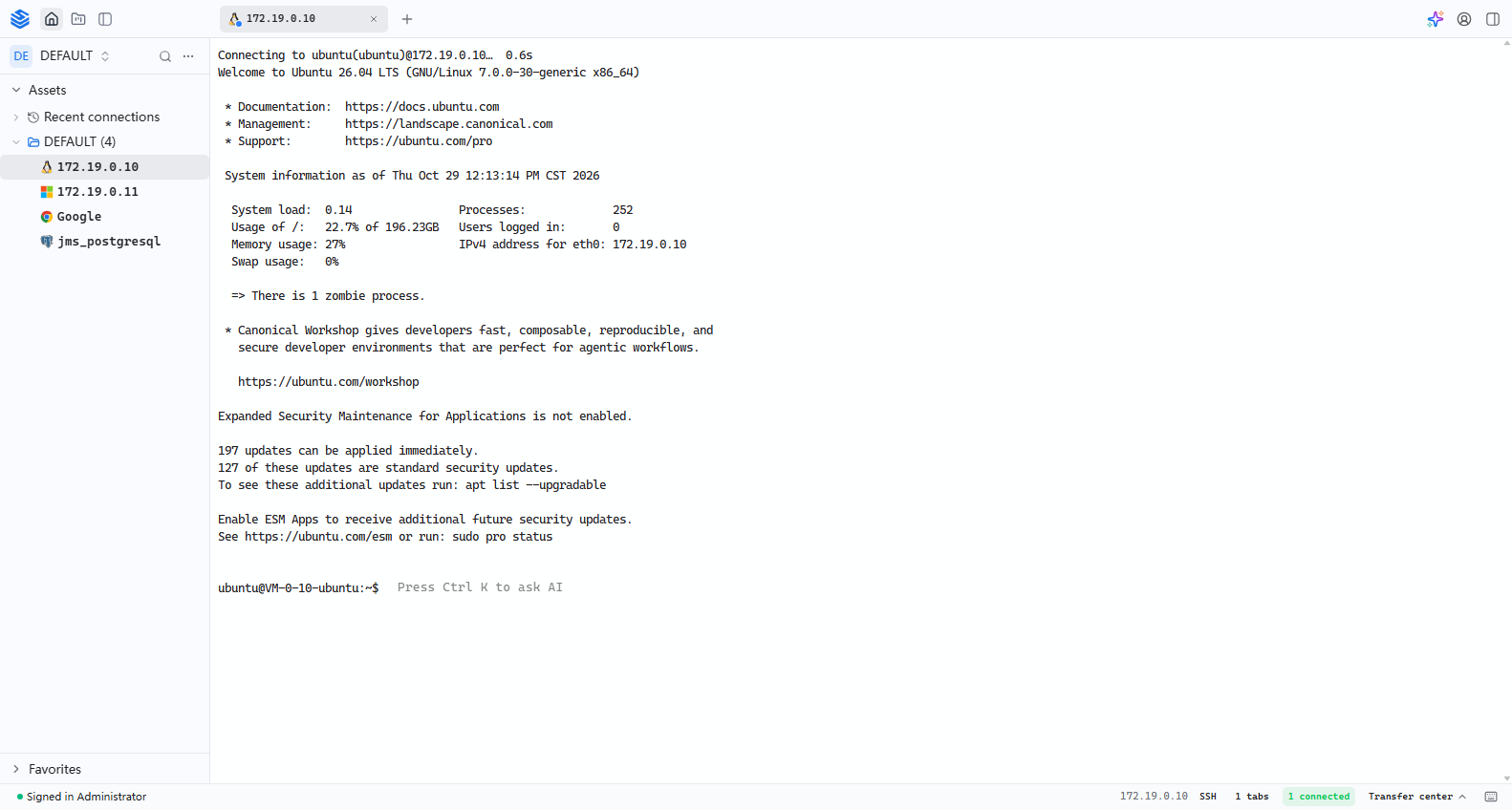
Sessions open as tabs in the session area.
- Switch sessions with
Alt + Shift + ← / →orCtrl + 1–9. - Drag tabs to reorder them.
- Drop one tab onto another to group them; grouped tabs can be restored in a future session. See Web Terminal Settings.
- Right-click a tab for pure mode, full screen, duplicate window, reconnect, rename, vertical split, horizontal split, and close actions.
- Use New Connection to reopen a recent asset, or Transfer Center to review file transfers.
Notes
- If the connection dialog reports no available account, ask an administrator to check the account authorization.
- If a protocol is missing, the asset platform may not support it or the asset was not created with that protocol enabled.
- If an application method is missing, install JumpServer Client and configure the local application path. If a client method is disabled, an access control policy may be blocking it.